Introduction
Project prioritization is highly advantageous for organizations wanting to know where to focus their time, money, and resource efforts…and where not to.
In this article, we’ll show you how to set up and use project prioritization in Proggio to make data-driven decisions about which projects deserve your organization’s attention.
To learn more about how your organization could benefit from project prioritization, click here.
How Project Prioritization Works
Proggio’s prioritization system uses a weighted scoring model based on your organization’s business drivers. Here’s how it works:
- Define business drivers – The key factors that matter to your organization (e.g., cost reduction, market share, risk exposure)
- Assign weights – Give each business driver a weight (1-10) based on its importance to your organization
- Create impact statements – Define specific grades for each business driver that describe the project’s impact
- Rate projects – Select the appropriate impact statement for each project’s business drivers
- Calculate scores – Proggio automatically calculates a total score by multiplying each business driver’s weight by its impact grade
- Rank projects – Use auto-ranking or manual ranking to organize your portfolio by priority
Setting Up Prioritization
Accessing Prioritization Settings
First, navigate to prioritization settings:
Settings → Customization → Prioritization
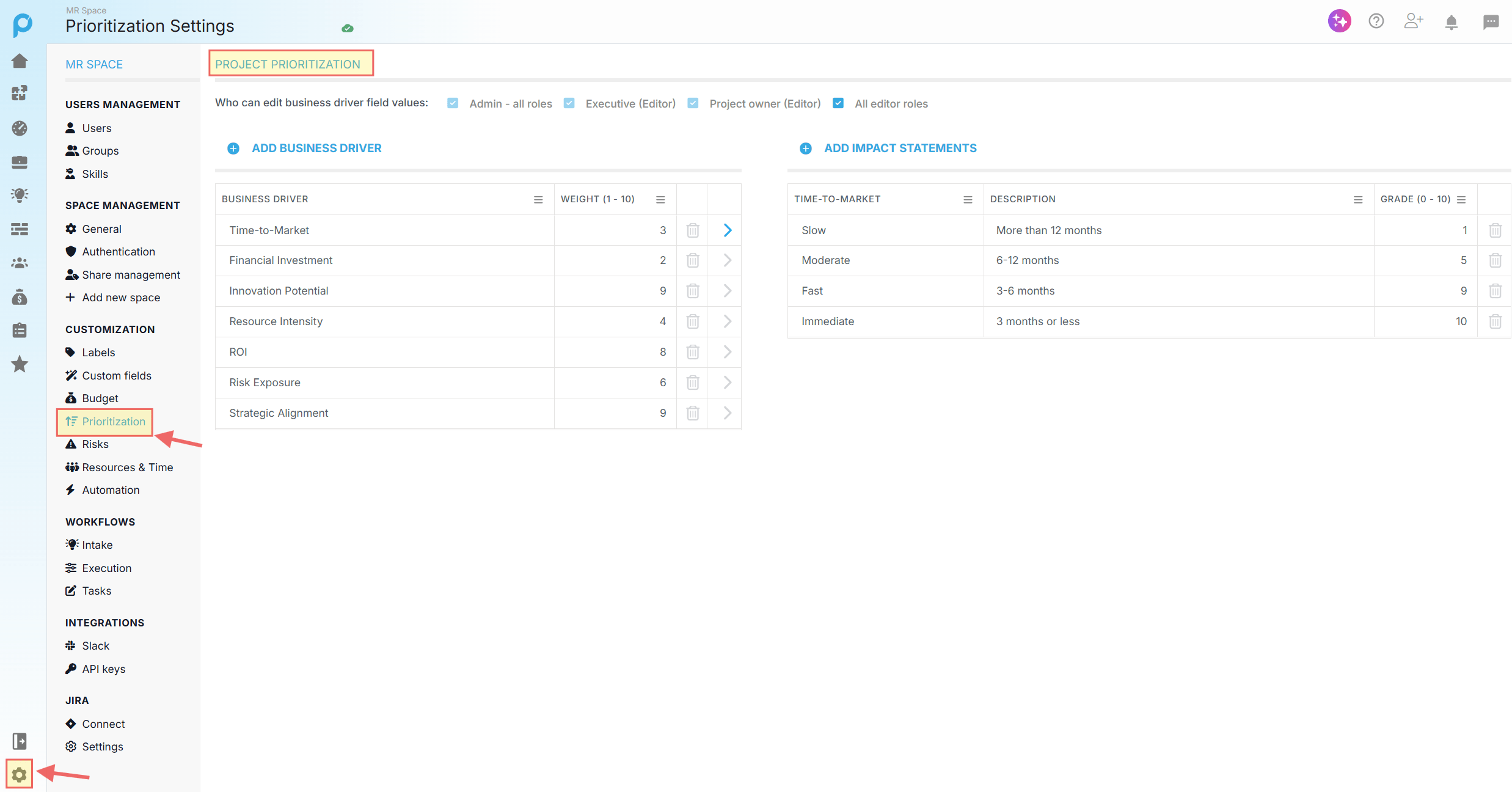
Important: Only Space Admins can configure business drivers, impact statements, and permission settings.
Defining Business Drivers and Weights

Business drivers are the strategic factors your organization uses to evaluate project value.
Common examples include:
- Time-to-Market
- Financial Investment
- Innovation Potential
- Resource Intensity
- ROI (Return on Investment)
- Risk Exposure
- Strategic Alignment
- Market Share Impact
- Compliance Requirements
To add or edit business drivers:
- In the Prioritization settings, click + ADD BUSINESS DRIVER

- Enter the business driver name
- Assign a weight from 1-10 (higher numbers = more important to your organization)
- The business driver is created and saved automatically
Example: If “Cost Reduction” has a weight of 7 and “Innovation Potential” has a weight of 3, cost-saving projects will have a greater impact on the final score than innovative projects.
Creating Impact Statements
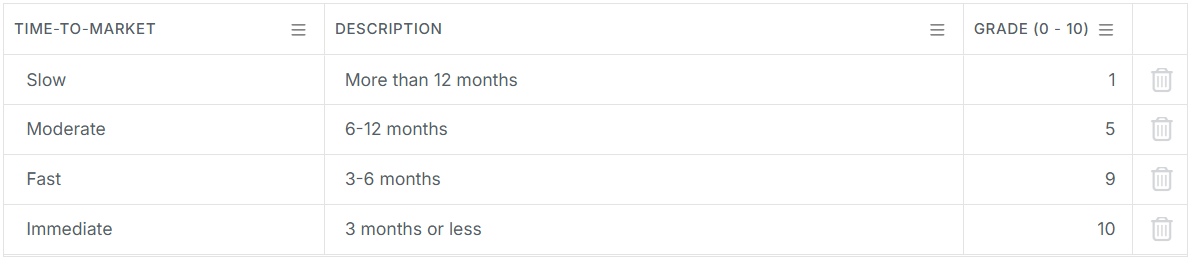
Impact statements define specific grades for each business driver, creating a standardized evaluation framework across all projects.
To add impact statements to a business driver:
- In the business drivers list, click the arrow (>) next to the weight value

- This expands the impact statements panel on the right
- Click + ADD IMPACT STATEMENTS

- For each impact statement:
- Enter a Description (e.g., “More than 12 months”, “6-12 months”, “3-6 months”)
- Assign a Grade from 0-10 (represents the impact level)
- The impact statement is created and saved automatically
Example – Time-to-Market business driver:
| Time-to-Market | Description | Grade (0 – 10) |
|---|---|---|
| Slow | More than 12 months | 3 |
| Moderate | 6-12 months | 5 |
| Fast | 3-6 months | 8 |
| Immediate | 3 months or less | 10 |
Tip: Create clear, objective criteria for each impact statement so different team members evaluate projects consistently.
Setting Permissions

Control who can edit business driver values for projects.
In the top left of the Prioritization settings, you’ll see: “Who can edit business driver field values”
Select from the following options:
- Admin – all roles
- Executive (Editor)
- Project owner (Editor)
- All editor roles
This ensures only authorized users can rate and prioritize projects.
Rating Projects
Once your business drivers and impact statements are configured, you can rate projects to generate prioritization scores.
Method 1: Rating from Portfolio List View
This method allows you to rate multiple projects quickly from a single view.
- Navigate to Portfolio → List View
- Click the filter dropdown and select Prioritization
- For each project, click the dropdown under each business driver column
- Select the appropriate impact statement
- The Score column updates automatically

How the score is calculated:
Each business driver contributes to the total score by multiplying its weight × impact grade.
Example:
- Time-to-Market: Weight 3, Grade “Fast (8)” = 3 × 8 = 24 points
- Financial Investment: Weight 2, Grade “Moderate Cost (5)” = 2 × 5 = 10 points
- Innovation Potential: Weight 9, Grade “High (9)” = 9 × 9 = 81 points
- Total Score: 24 + 10 + 81 = 115 points
Method 2: Rating from Project Properties
You can also rate individual projects from their properties panel.
- Open any project
- Click the Project Properties icon (or press ‘i’)
- Navigate to the Custom Fields tab
- Scroll to the prioritization business driver fields
- Select the appropriate impact statement for each business driver
- The project score updates automatically
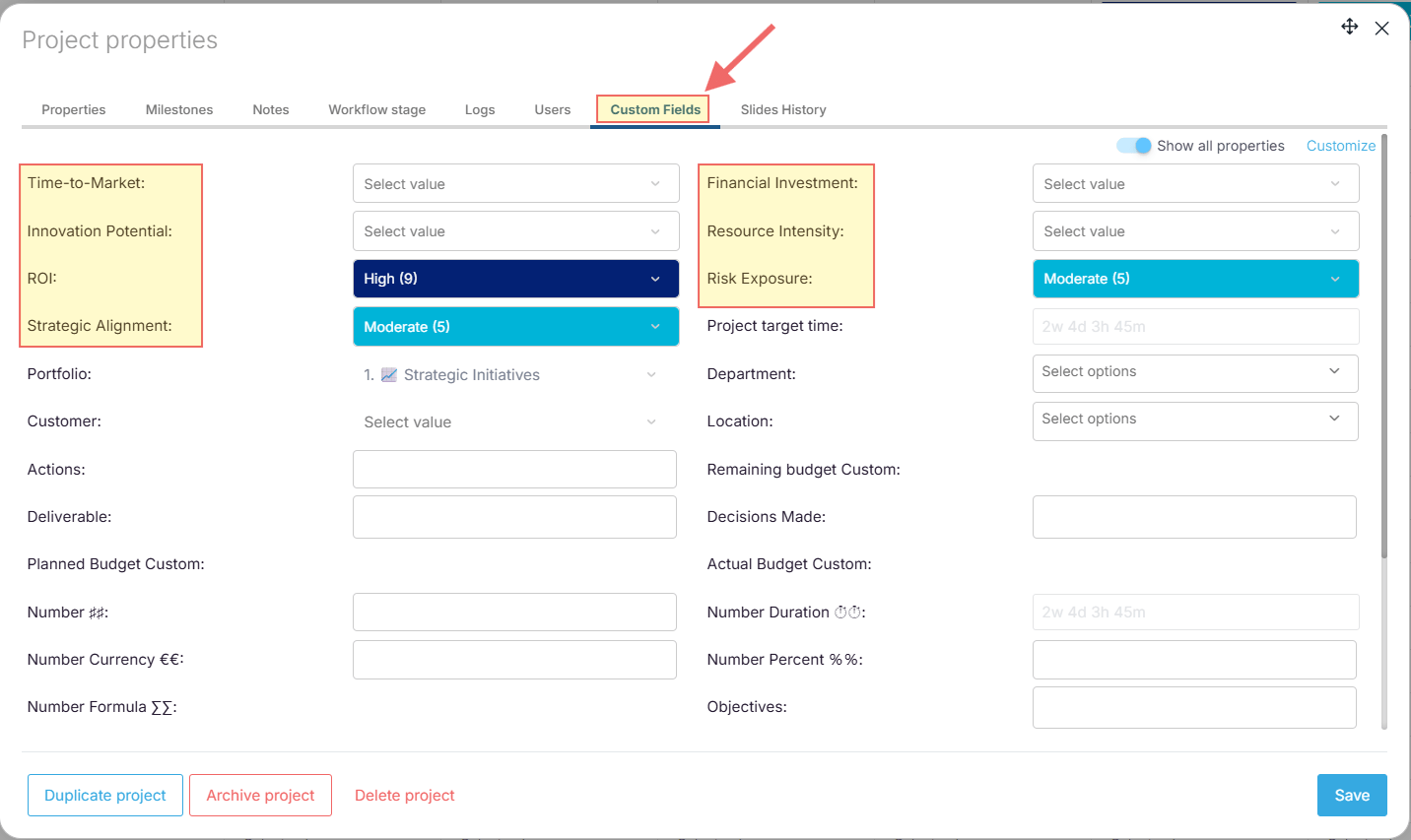
This method is useful when creating or reviewing individual projects in detail.
Auto-Ranking Projects
Once projects have been scored, you can use Proggio’s auto-ranking feature to automatically rank them by score.
Important: Only Space Admins can configure auto-ranking.
How to Enable Auto-Ranking
- Navigate to Portfolio → List View
- Select the Prioritization saved view
- Click the Tools icon in the top toolbar
- Select Auto ranking from the menu

- A confirmation dialog appears: “Are you sure you want to apply auto ranking to all projects according to their score? All current ranks will be overwritten.”

- Click Yes to confirm
Proggio automatically assigns rank numbers based on score, with Rank 1 being the highest-scoring project.
Manual Ranking: You can also manually adjust ranks by clicking the Rank column for any project and entering a custom rank number.

Keep in mind that manual edits will be overwritten the next time you run auto-ranking.
Viewing and Using Prioritization Data
Sorting by Rank or Score
To organize your portfolio by priority:
- In Portfolio List View, click the Rank or Score column header
- Click the hamburger menu (≡) that appears
- Select Sort by ascending or Sort by descending

This instantly reorganizes your portfolio to show the highest-priority projects at the top.
Filtering by Rank
To focus only on high-priority projects:
- Click the Filter icon
- Select the Rank field
- Choose specific rank values (e.g., Rank 1-5)
- Your portfolio now displays only the top-ranked projects

This is especially useful for executive dashboards or resource allocation meetings.
Viewing Rank in Portfolio Map View
You can display project ranks alongside your portfolio timeline:
- Navigate to Portfolio → Map View
- Open the project names panel by sliding the divider to the right to show the Rank field

If the Rank field is not in the columns:
- Click the View (eye icon)
- Select Show/hide columns

- Add the Rank field
- Open the project names panel by sliding the divider to the right
- The Rank column now appears as the last column in the panel
This gives you a visual representation of project priority alongside schedule data.
Visualizing Prioritization in Dashboards
You can add prioritization insights to your dashboards for high-level visibility across your organization.
To add the prioritization widget:
- Open any dashboard (Portfolio or Project level)

- Click + Create > Add Widget
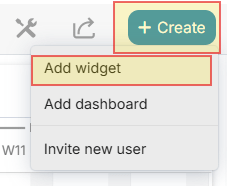
- Search for or select “Projects prioritization” and click Add widget

- The widget displays all projects with their:
- Rank
- Project name
- Owner
- Workflow stage
- Score
- All business driver values (TIME-TO-MARKET, FINANCIAL INVESTMENT, INNOVATION POTENTIAL, etc.)

This widget provides a comprehensive view of your prioritized projects, making it easy to share prioritization insights with stakeholders and track how projects rank across all business drivers.
Best Practices
Start Simple
Begin with 3-5 core business drivers that truly matter to your organization. You can always add more later as your prioritization process matures.
Involve Stakeholders
When defining business drivers and their weights, involve key stakeholders from different departments to ensure alignment on organizational priorities.
Use Clear Criteria
Write impact statements that are objective and measurable. Avoid subjective terms like “good” or “bad” – instead use specific criteria like “Less than $50K” or “6-12 months”.
Review Regularly
Business priorities change. Review and update your business driver weights quarterly or whenever strategic priorities shift.
Communicate Rankings
Use the dashboard widget and filtered portfolio views to share prioritization results with leadership and ensure everyone understands which projects are strategic priorities.
Balance Scoring with Judgment
Prioritization scores provide data-driven guidance, but don’t let them override critical thinking. Use manual ranking when necessary to account for factors the scoring system can’t capture.
Summary
Project prioritization in Proggio helps you:
- Make objective, data-driven decisions about which projects deserve resources
- Align projects with organizational strategy through weighted business drivers
- Create transparency and accountability in project selection
- Focus your team’s efforts on high-value initiatives
- Communicate priorities clearly to stakeholders
By following the steps in this guide, you can implement a robust prioritization framework that ensures your organization invests time, money, and resources in the projects that matter most.