Why Budget Management Matters in Project Management
Budget management in Proggio allows you to track financials across all your projects without needing a separate budgeting tool.
Since budget is attached directly to tasks within a project, you get real-time visibility into your approved budgets, planned costs, and actual spending at every level — from individual tasks up to your entire portfolio.
Whether you’re managing a single project or overseeing a portfolio of work, Proggio’s integrated budget tools give you the transparency you need to make informed financial decisions quickly.
Getting Started: Configure Your Budget Settings
Before you start assigning budgets to tasks, you’ll need to set up your organization’s budget items and cost structures.
This is a one-time setup that creates the building blocks for all your project budgeting.
Note: Budget settings configuration is only available to Admin users.
How to Access Budget Settings
- Click the cogwheel icon in the bottom left menu bar to open Settings
- Navigate to Customization → Budget
- You’ll see a pre-defined list of budget items with examples to get you started

Understanding Budget Item Fields
When creating or editing a budget item, you’ll define these key attributes:

Category — The broad classification for your budget item. Choose from these fixed categories:
- Labor
- Materials
- Consulting and Services
- Fixed Cost
Label — A sub-category or more specific name within a category. For example, under Labor you might have “High-cost,” “Mid-cost,” and “Low-cost” labels.
Comments — Free text field for additional context or clarification about what the budget item covers.
Units — The measurement type used to calculate costs. Options include:
| Unit Type | Use Case | Notes |
| Hours | Hourly labor or services | For detailed time tracking |
| Days | Daily labor rates | Required for user assignment |
| Weeks, Months, Quarters, Years | Recurring costs | For contracts, subscriptions |
| Quantity | Any countable item | Generic unit count |
| Currency | Direct dollar amounts | No per-unit calculation |
| Percentage | Percentage-based costs | Useful for commissions |
| Units | Custom measurements or unusual metrics | Good for agile/iterative budgeting (features, iterations); Useful for creative work (deliverables, designs, mockups) |
$ / Unit — The cost associated with each unit. For example, Mid-cost labor might be $500 per day, while a fixed consulting service might be set as a fixed currency amount.
Example: Setting Up Labor Cost Categories
Many organizations use a tiered labor cost structure. Here’s a typical setup:
- High-cost Labor — Days — $800 per day (senior engineers, leads)
- Mid-cost Labor — Days — $500 per day (mid-level engineers)
- Low-cost Labor — Days — $300 per day (junior engineers, support staff)

This tiered approach lets you allocate resources based on expertise level while tracking costs accurately.
Example: Setting Up Fixed Costs
For services with fixed costs (like notary services or licensing), set the Unit as “Currency” and the cost as $1.
This allows you to specify any amount needed when you assign it to a task.
Quick Tips for Setup
- Import from Excel: If you have a large list of budget items, click the + Create icon in the top right corner and select Import from File
- Manual creation: Click Create New Budget Item to add items one at a time
- Currency setting: At the top right of the Budget settings screen, you can select your preferred currency (note: only one currency can be set for all budget items within your workspace)
Assigning Budget to Tasks
Once your budget items are configured, you can start assigning them to tasks.
Proggio gives you multiple ways to do this depending on where you’re working in the platform.
Method 1: Assign Budget from Project Budget View

- Open your project and select the Budget tab from the dropdown menu
- Click the + Create icon in the top right to add a budget item
- For each task, choose the Budget Item (from your pre-configured list), enter the Planned units, and update Actual units as work progresses
The total cost will automatically calculate based on the number of units multiplied by the unit cost you defined in your budget settings.
Method 2: Assign Budget from Task Properties

- Right-click any task on your project map and open its properties
- Select the Budget tab
- Click Add Budget Item and select your budget item
- Input the Planned units for that task and update Actual units as the task progresses
Pro tip: Use whichever method matches your workflow. Proggio keeps everything in sync across all views.
Understanding Plan vs. Actual Tracking
One of the most powerful aspects of Proggio’s budget management is the ability to compare what you planned to spend against what you’re actually spending.
This gives you real-time visibility into whether you’re on track or over budget.

Planned Units — The budget you allocated when you set up the task.
Actual Units — The real amount spent as the task progresses. Proggio visually highlights when actual units exceed planned units in red, making overages immediately obvious.
This data feeds directly into your project’s budget reports, giving you a quick way to spot trends and make adjustments before overspending becomes an issue.
Labor Cost Automation: Save Time With Auto-Calculated Costs
One of Proggio’s most time-saving features is automatic labor cost calculation.
Instead of manually entering labor costs for every task, you can set up user cost associations and let Proggio calculate them for you.
Step 1: Assign Cost Tiers to Users
- Go to your workspace Settings and navigate to User Management → Users
- Click on any user’s profile
- In their profile settings, find the Cost Association field
- Select the appropriate labor cost tier from your Budget settings (e.g., “Mid-cost Labor”)

This tells Proggio how to calculate labor costs whenever this user is assigned to a task.
Step 2: View Auto-Calculated Labor Costs
Once users have cost associations assigned:
- Open your project’s Budget view
- Click the eye icon at the top
- Select Show auto-calculated labor

Proggio will now display auto-calculated labor costs based on the assigned user’s cost tier, the task’s duration (in working days), and the user’s workload percentage for that task.
Real-world example: If Eric is a Mid-cost resource ($500/day) and is assigned to a 7-day task at 100% workload, his labor cost would automatically calculate as $3,500.
You can hide auto-calculated labor anytime by clicking the eye icon again and deselecting the option.
Project-Level Budget Reports: Monitor Your Project's Financial Health
Once you’ve assigned budgets to your tasks, Proggio automatically aggregates this data at the project level, giving you multiple views to analyze your project’s financial status.
Plan vs. Actual Report
The Plan vs. Actual report is your primary tool for tracking budget performance on a task-by-task basis.

- Open your project and select Budget from the dropdown menu
- The Plan vs. Actual view shows:
- All budget items assigned to tasks in your project listed in a table
- Columns include: Task Label, Assignees, Start, End, Budget Item, Budget Target, Plan (Units), $/Unit, Actual (Units), Plan ($), Actual ($)
- A Summary section at the bottom that totals all budget items across the project
- Red highlighting on Actual (Units) when they exceed Planned (Units), making overages immediately visible
You can enable Show auto-calculated labor at the top of the view to see labor costs automatically calculated based on assigned users, their cost associations, and task duration.
Periodic Budget Report: Understand Spending Over Time
The Periodic Budget Report gives you a time-based view of your budget, showing how spending is distributed across your chosen time period.

- In your project’s Budget view, select Periodic Budget Report from the dropdown
- Choose your time period from the dropdown (Months, Quarters, Years, or Weeks)
- The report displays columns for Budget Item, Category, Approved, Plan (Units), and time-period columns showing planned or actual amounts
View options for the Periodic Report (accessible via the eye icon): Show auto-calculated labor, Show planned budget, and Show actual budget.
You can toggle these on or off to focus on the data that matters most.
Project Budget Targets: Set Your Financial Boundaries
The Budget Target view allows you to set and track target amounts for each budget item at the project level.

- In your project’s Budget view, select Budget Target from the dropdown
- The view displays Category, Budget Item, Comments, Units, $/Unit, Target, and Sum (calculated total)
- Set your Target amount for each budget item to establish your financial boundaries
- The Sum column automatically calculates the total target amount for that item
- These targets serve as your approval/control limits and help you stay on track throughout project execution
Portfolio-Level Budget Overview: Manage Multiple Projects
Managing budgets across multiple projects is where Proggio’s budget features really shine.
Your portfolio budget view gives you a comprehensive view of spending across your entire organization, with both project-level and category-level analysis.
How to Access the Portfolio Budget View
- Navigate to your Portfolio view
- Click Budget in the view selection

Understanding the Portfolio Budget Structure
The portfolio budget view is organized in two sections, each with its own summary:
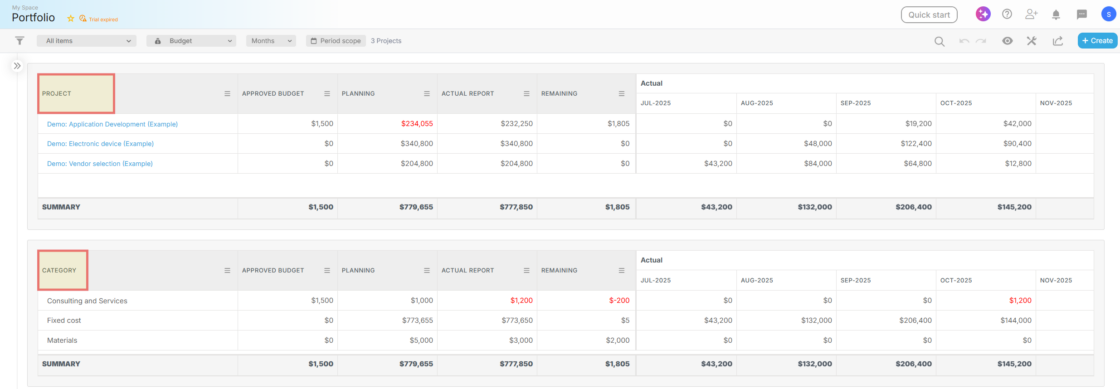
Project-Level Section (Top) shows each project as a row with its budget summary including Project name, Approved Budget, Planning, Actual Report, Remaining, and time-period breakdown.
Category-Level Section (Bottom) shows budget totals grouped by category (Consulting and Services, Fixed Cost, Labor, Materials). Each category shows the same columns. Both sections have a Summary row that totals all values.
Controlling the Time Period View
At the top of the portfolio view, use the dropdown menus to control what you see:
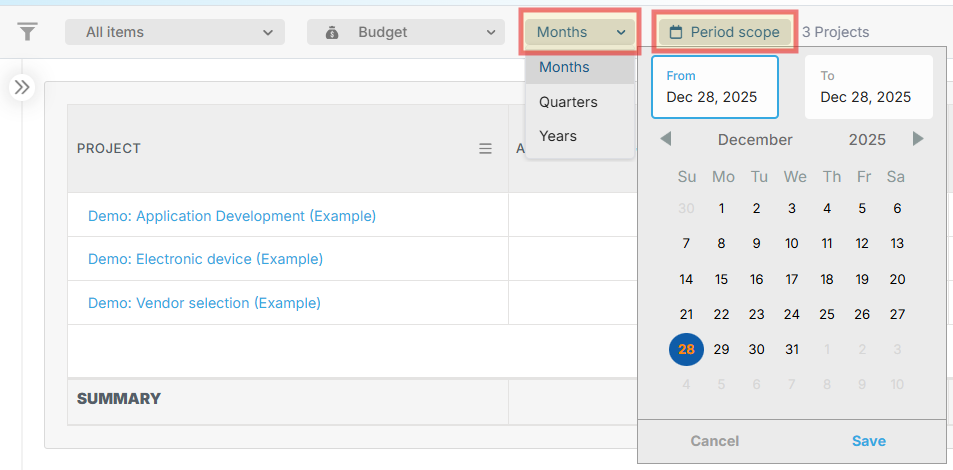
- Timeframe dropdown — Choose how to group your data (Months, Quarters, or Years)
- Period scope dropdown — Select a custom date range to display (e.g., 01.01.2023 – 01.01.2024)
The header shows the number of active projects being displayed (e.g., “3 Projects”).
Portfolio View Options
By clicking the eye icon you’ll find several options to customize what data displays:

- Show sub-projects — Toggle to include or exclude sub-projects in the calculation
- Show auto-calculated labor — Displays labor costs calculated automatically based on user assignments and cost associations
- Show planned budget — Shows planned amounts in the time-period columns
- Show actual budget — Shows actual spending in the time-period columns
Reading the Portfolio Budget Data
Approved Budget — Your target/approved amounts; your financial ceiling for each project or category.
Planning — The total amount allocated in your project plans. This should ideally stay close to or below your Approved Budget.
Actual Report — The actual spending to date. When highlighted in red, it signals an overage.
Remaining — Shows the variance between Approved and Actual. Negative values (shown in red) indicate overspending.
Time Period Columns — Show planned or actual amounts broken down by your selected time period, useful for cash flow planning and resource allocation.
Analyzing Portfolio Health at a Glance
- Spot overages immediately — The Remaining column shows negative values in red, making it easy to see which projects are over budget.
- Understand spending patterns — The time-period columns show when budget is being spent, helping you identify if spending is front-loaded, back-loaded, or evenly distributed.
- Compare planned vs. actual — The Planning and Actual Report columns show how well you estimated your costs. Large variances suggest estimation challenges or scope changes.
- Aggregate by category — The category-level section helps you understand which types of spending are consuming your resources.
- Make reallocation decisions — Shift budget between projects, adjust timelines, or reallocate resources based on portfolio-wide performance.
Budget Permissions: Control Who Sees Budget Data
Not all team members need access to budget data.
You can control who sees and manages budget information at the user level.
How to Configure Budget Access
- Go to Settings and open User Management → Users
- Click on a user’s profile
- Navigate to the Permissions tab
- Toggle to show or hide the user’s access to the Budget module
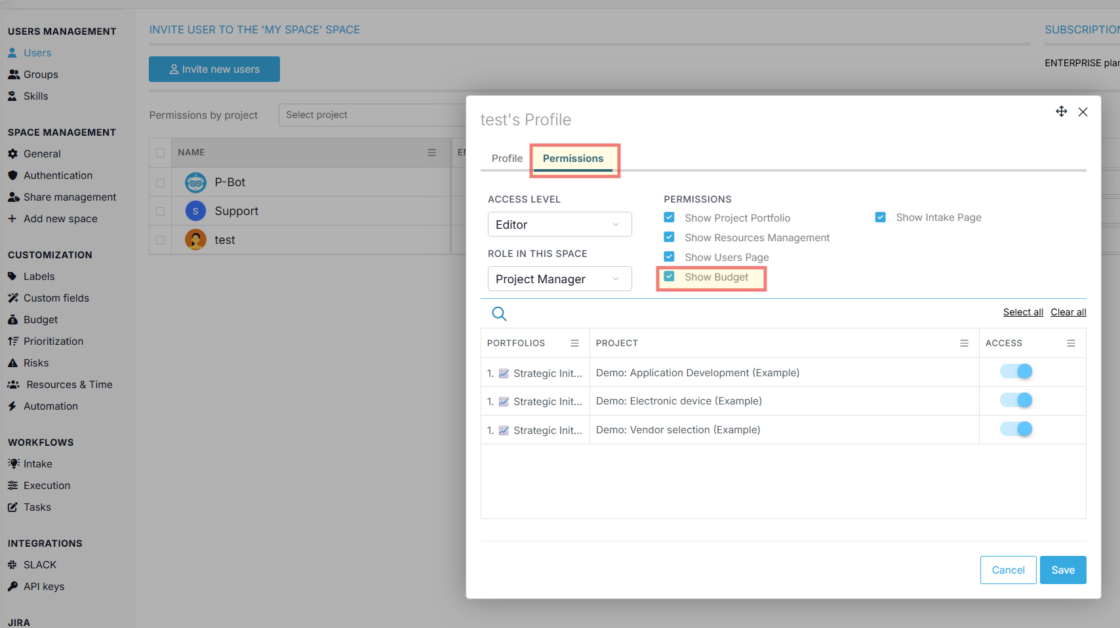
Users without Budget permission will not see the Budget view selection in the portfolio or project levels.
Best Practices & Troubleshooting
Best Practices
Set realistic targets early — Establish accurate Budget Targets based on historical data or expert estimates for meaningful comparison.
Use workload percentages accurately — Set workload percentage correctly to ensure accurate labor cost calculations.
Review budget reports regularly — Make weekly or bi-weekly Plan vs. Actual reviews a habit to catch issues early.
Enable auto-calculated labor — Set up labor cost tiers and user associations to save time and improve accuracy.
Combine with other insights — Use budget reports alongside timeline views and risk tracking for complete project health.
Troubleshooting
Auto-calculated labor isn’t showing
- Ensure the user has a cost association set up in their profile
- Confirm the task has a duration and user is assigned at >0% workload
- Check the labor budget item uses “Days” or “Hours” as unit type
Budget totals seem incorrect
- Verify you’re viewing the correct time period in Periodic reports
- Check that all tasks have correct duration values
- Confirm budget items are assigned to the right tasks
I can’t see the Budget menu
- Check your user permissions — budget access may be disabled
- Contact an Admin to enable Budget permissions for your user
Next Steps
Now that you understand how to set up and manage budgets in Proggio, consider:
- Setting up labor cost tiers for your team
- Scheduling regular budget reviews with team leads
- Enabling auto-calculated labor to reduce manual data entry
For more help, visit our help center or contact us at [email protected].