Introduction
Proggio allows you to import projects directly from Microsoft Project by converting your .mpp files to Excel format (.xlsx).
Once exported, your MS Project Gantt chart data will be ready to import into Proggio’s interactive Projectmap format.
This guide will walk you through the simple export process.
What you’ll need:
- Microsoft Project installed on your computer
- The project file you want to import to Proggio
- A few minutes to complete the export
Step-by-Step Export Guide
⠀
Step 1: Open Your MS Project File
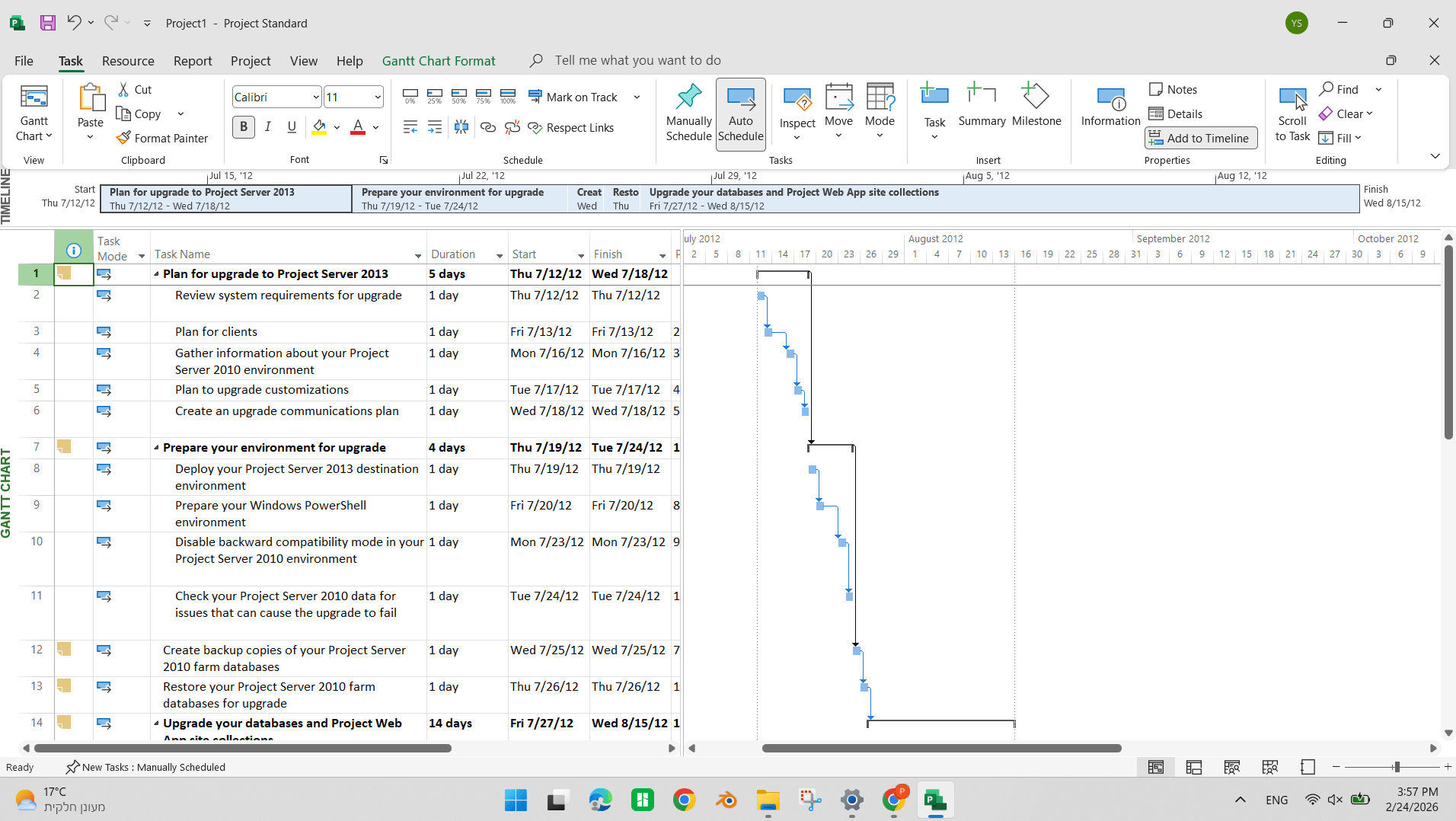
Open the Microsoft Project file you want to import into Proggio.
Step 2: Navigate to the File Menu
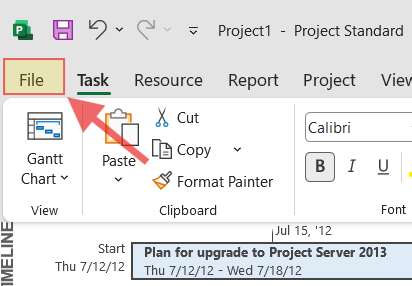
From the top left corner, click on File.
A new screen will open with several options.
Step 3: Select Export Options
- From the left context menu, click on Export.
- On the main screen, select Save Project as File.
- Under Other File Types, select the Microsoft Excel Workbook option.
- Click Save As.

Step 4: Choose File Location and Name
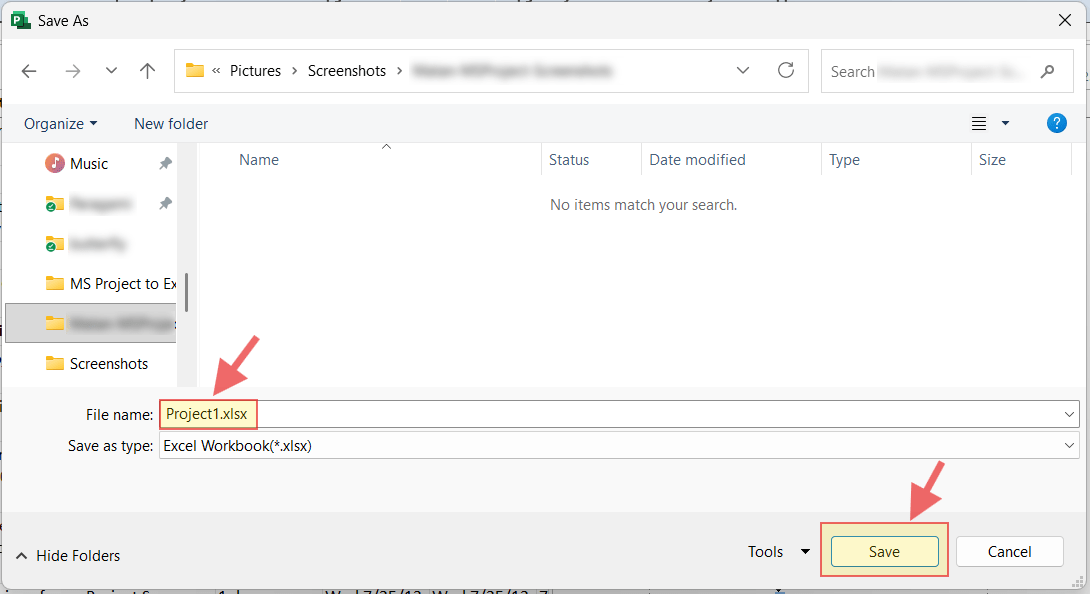
A save file pop-up window will open. Name your file and save it in your preferred location.
Step 5: Start the Export Wizard
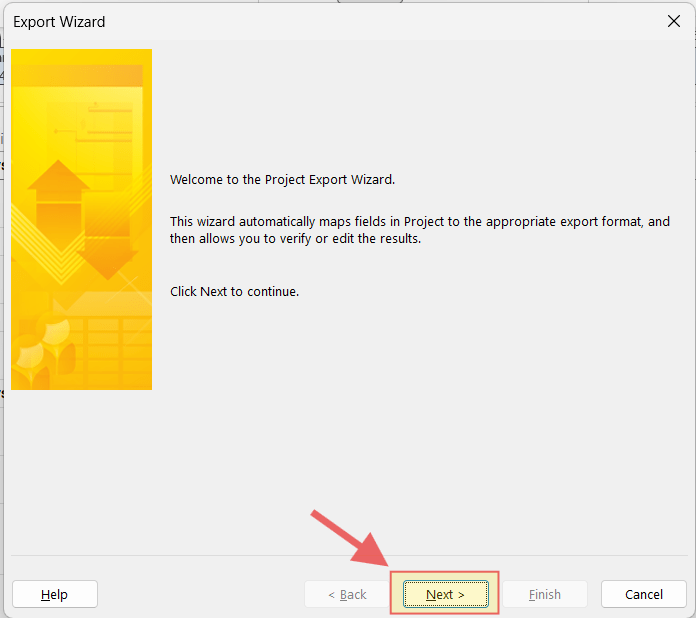
The Export Wizard will now appear.
On the first screen, click Next.
Step 6: Select Export Format
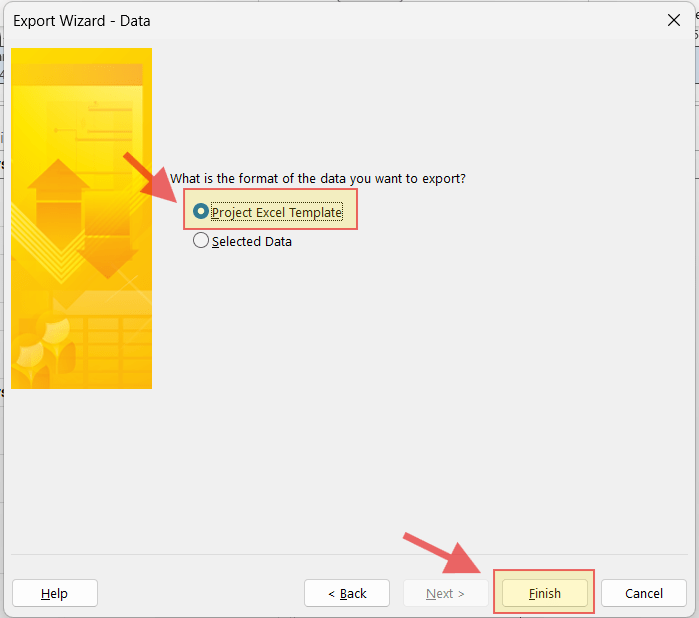
Click Finish at the bottom of the wizard.
That’s it! Your MS Project file is now saved as an Excel file (.xlsx) and ready to import into Proggio.
Next Steps
Now that you’ve exported your MS Project file to Excel format, you’re ready to import it into Proggio.
Ready to import? See our guide: How to Import MS Project Files into Proggio